
PayPal Integration and Linking Products with Inventory & Templates
Learn how to connect your PayPal Business account with DFSENDER and add products for instant digital delivery. Once linked, you can sell products directly through PayPal using Buy Now buttons or shareable links.
Connect your PayPal business account #
Open your DFSENDER dashboard and navigate to Sales Platform → PayPal.
You will see two tabs:
- Store List
- Product List
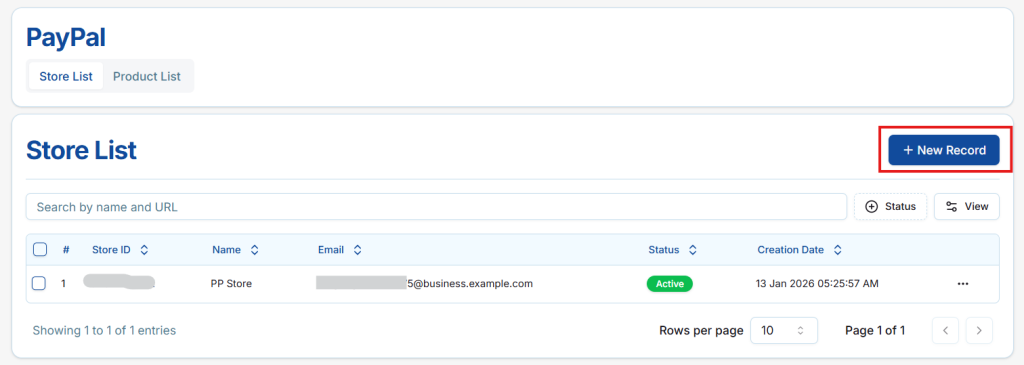
Add a New PayPal Store #
To connect a PayPal store, you must provide your PayPal Business credentials manually. No PayPal redirection or OAuth authorization flow is required.
- Go to the Store List tab and click New Record.
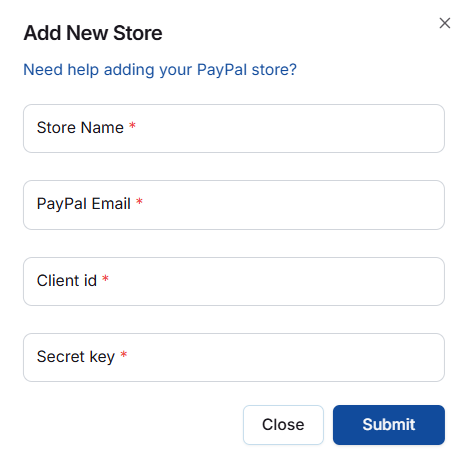
- A modal will appear requesting the following information:
- Store Name → Any recognizable name for your store (e.g., “My PayPal Store”).
- PayPal Email → Email associated with your PayPal Business account. (Personal PayPal accounts are not supported.)
- Client ID → Obtained from your PayPal Developer Dashboard (masked input).
- Secret Key → Obtained from your PayPal Developer Dashboard (password-type masked input).
- Click Submit.
Get Client ID & Secret Key (For Store Connect)
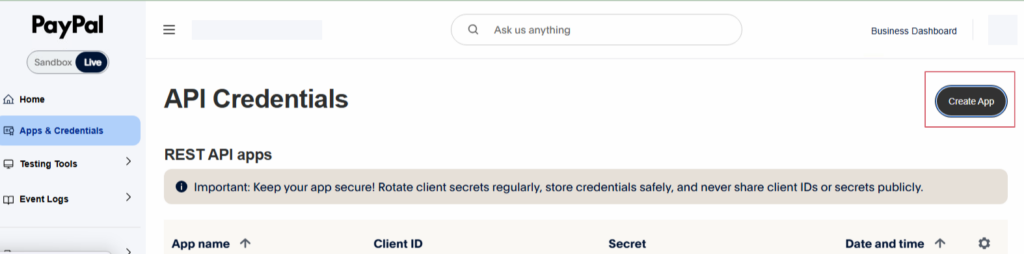
- Go to the PayPal Developer Dashboard.
- Navigate to Apps & Credentials.
- Click Create App under the REST API Apps section.
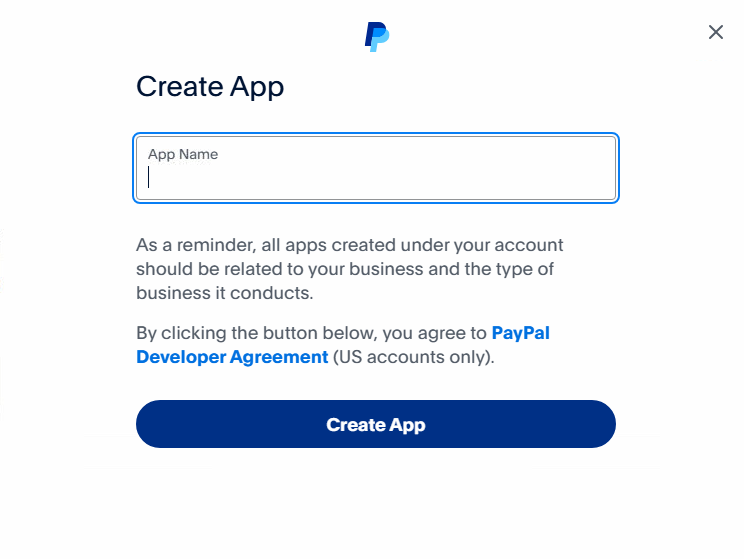
4. Enter an App Name and create the application.
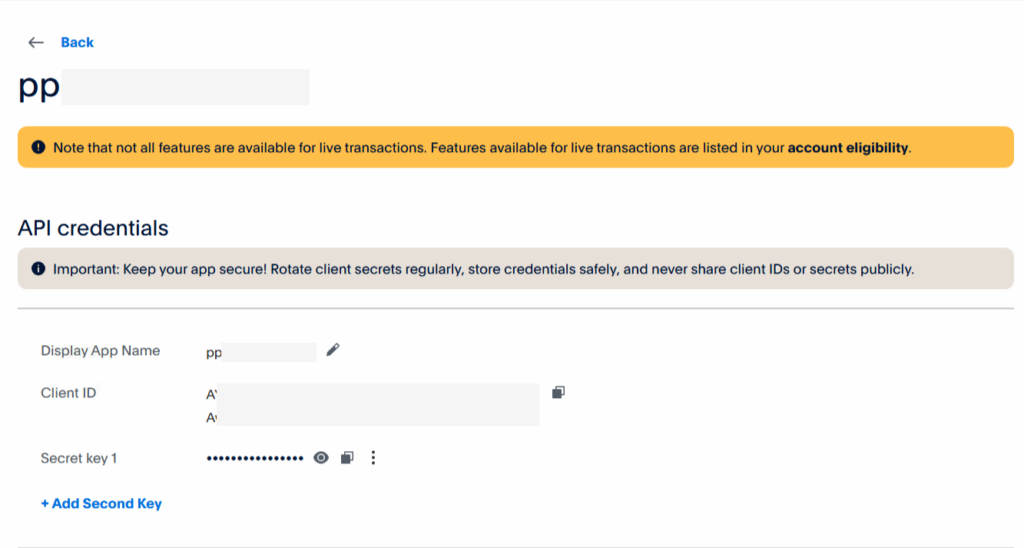
5. After the app is created, you will receive: Client ID, Client Secret.
These credentials are required to connect your PayPal store to our app. When connecting the store, you will need to provide the Client ID and Client Secret generated from your PayPal developer account.
- If validation succeeds, a confirmation message appears:
“Store added successfully”.
The store is instantly added to the Store List with status Active.
Important Notes
- All fields are mandatory. The Submit button remains disabled until all required fields are filled.
- Client ID and Secret Key are always masked and never displayed in plaintext.
- No PayPal login, popup, or authorization page will open.
Common Error Messages
- Field is required!
- Please enter a valid email.
- Only PayPal Business accounts can be connected.
- Store already connected.
PayPal Store Table #
After successful validation, your connected PayPal store appears in the Store List table.
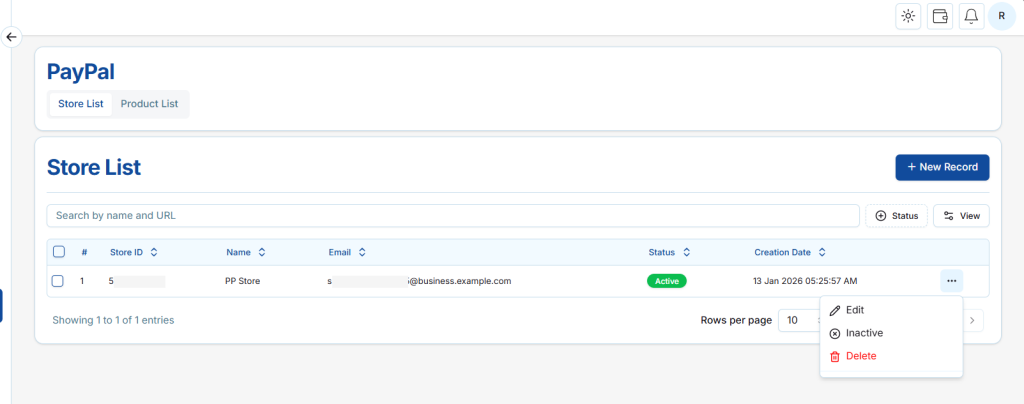
Available Actions:
- Edit → Update store name or credentials.
- Inactive / Active → Enable or disable transactions for this store.
- Delete → Permanently remove the store along with all related products and transactions.
✅ Once added, the store becomes Active and is ready to add products and process payments.
Enable Transaction Search (For Transactions – Import Orders) #
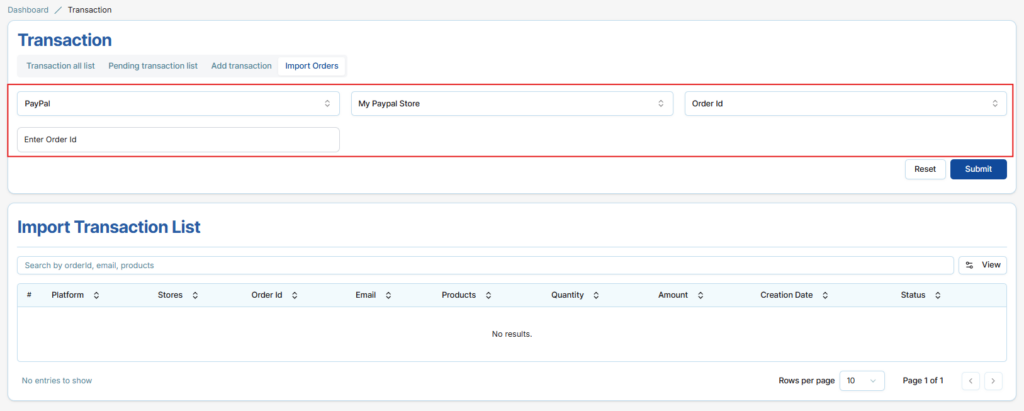
To enable the Import Order functionality:
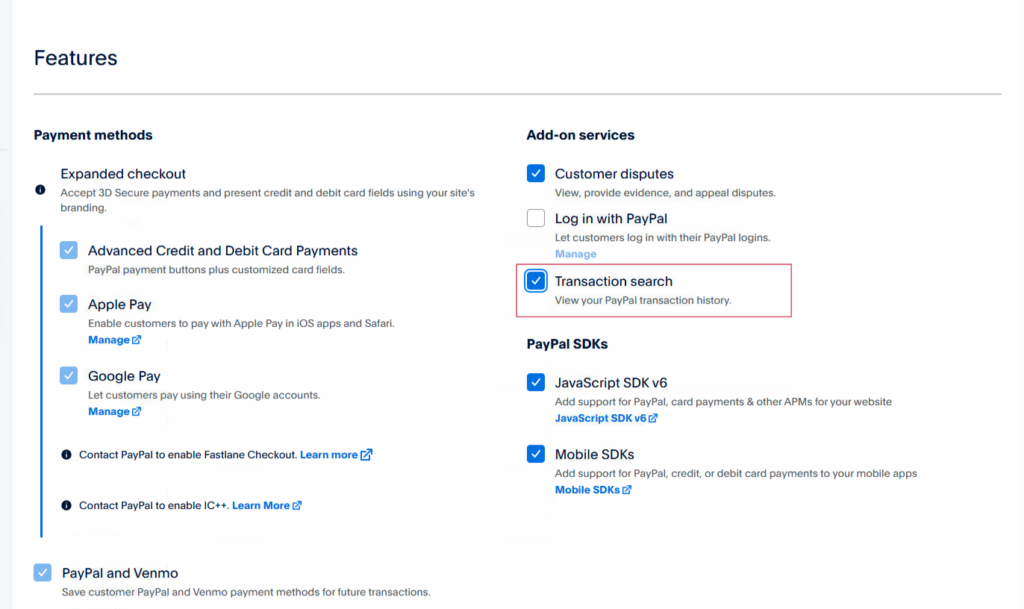
- Go to Apps & Credentials in your PayPal Developer Dashboard.
- Scroll down to the Features section.
- Find Transaction Search.
- Click Enable for this feature.
Once Transaction Search is enabled, your app will be able to retrieve transaction data, allowing the Import Order feature to work correctly in our platform.